




How Can We Help?
How to view and change settings for shared hosting accounts
This article describes how to use the XauZit Customer Portal to view and change settings for a shared hosting account. In addition to changing the login settings, you can do many common administrative tasks right from the Customer Portal interface.
Viewing and changing account login settings
You can use the XauZit Cloud Customer Portal to view the username and password for your shared hosting account. You can also use it to change the password.
To view or change your shared account login settings:
- Log in to the Customer Portal.
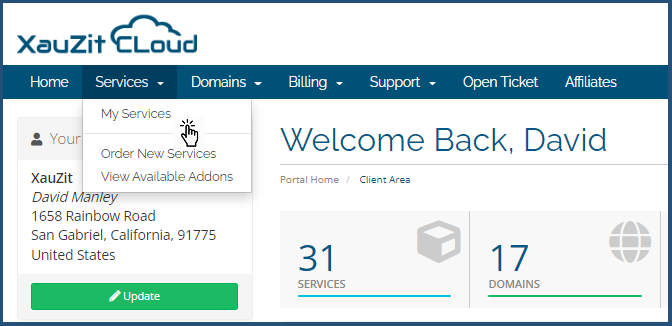
- On the menu bar, click Services, and then click MY SERVICES:
- Under My Products & Services, locate your hosting package, and then click Active.
- To change your password, in the Actions sidebar, click :
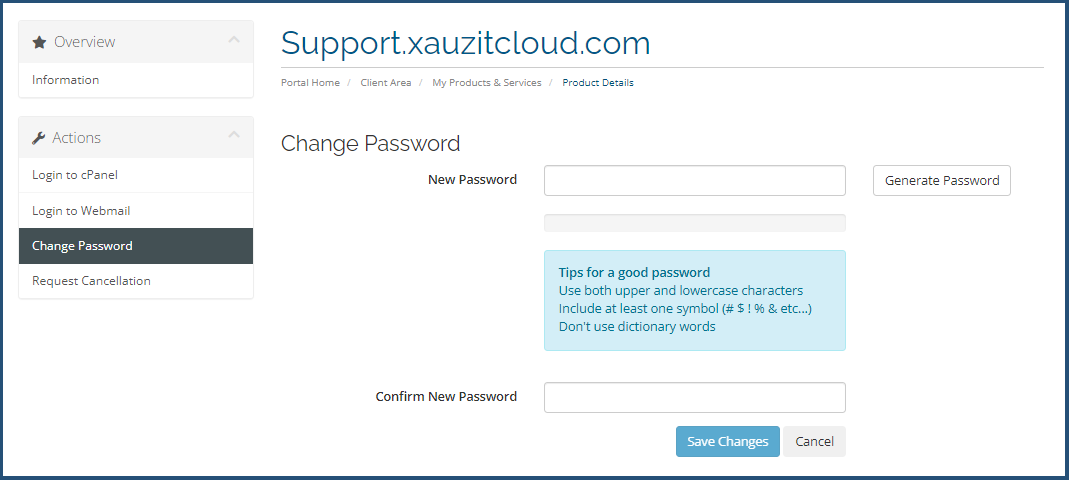
- To change your password, type the new password in the New Password text box.
- In the Confirm New Password text box, re-type the new password.
- Click Save Changes.
Using Quick Shortcuts
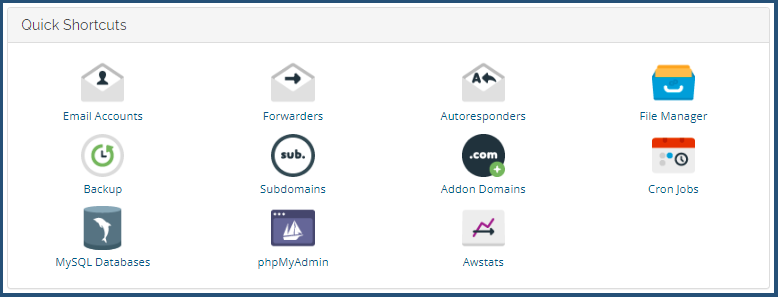
The Quick Shortcuts feature enables you to do many common administrative tasks right from the Customer Portal interface.
To access Quick Shortcuts, follow these steps:
- Log in to the Customer Portal.
- On the menu bar, click Services, and then click MY SERVICES:
- Under My Products & Services, locate your hosting package, and then click Active.
- In the Quick Shortcuts section, click the feature you want to use:
- The Customer Portal automatically logs you in to cPanel.
Viewing usage statistics
You can also view the following usage statistics for your account:
- Disk usage.
- Bandwidth usage.
To do this, follow these steps:
- Log in to the Customer Portal
- On the menu bar, click Services, and then click MY SERVICES
- Under My Products & Services, locate your hosting package, and then click Active.
- In the Usage Statistics section, view your account usage statistics.