How Can We Help?
How to set up Edison Mail on iOS
This article demonstrates how to set up the Edison Mail app on iOS to access an XauZit Cloud e-mail account.
To configure Edison Mail to work with your XauZit Cloud e-mail account on an iOS device, follow these steps:
- Start Edison mail.
- On the Add an account page, tap Other:

- In the Email text box, type the e-mail address of the account you created in cPanel:

- In the Password text box, type the password for the e-mail account you created in cPanel.
- Tap Sign In.
- Edison Mail automatically detects the email server settings and adds the account. On the Add another account? page, tap Maybe Later:

- On the next page, tap No Thanks:

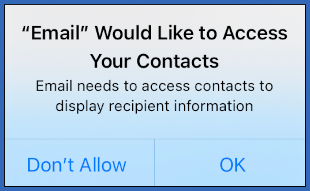
- In the contacts access dialog box, tap Don’t Allow or OK:
- In the notifications dialog box, tap Don’t Allow or Allow:

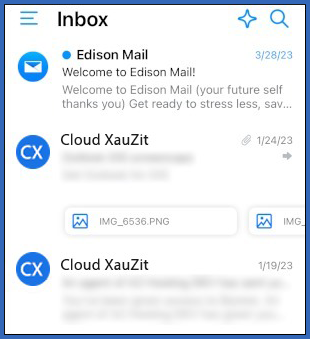
- Edison Mail downloads any messages in the account, and the inbox appears: