




How Can We Help?
How to set up e-mail on Apple iOS
This article demonstrates how to set up access to an XauZit Cloud e-mail account on Apple iOS devices, such as the iPhone and iPad.
To configure an iOS device to work with your XauZit Cloud e-mail account, follow these steps:
- Make sure you have already created at least one e-mail account for your domain. If you have not done this, please see this article to learn how to create an e-mail account using cPanel.
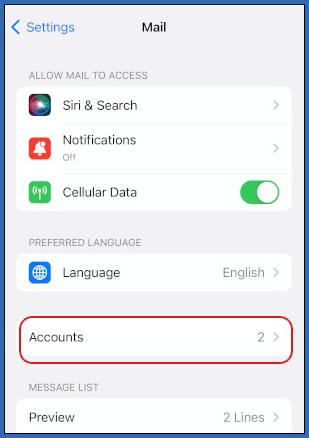
- On the home screen, tap Settings, and then tap Mail.
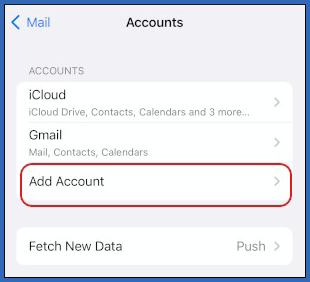
- Tap Accounts, and then tap Add Account:
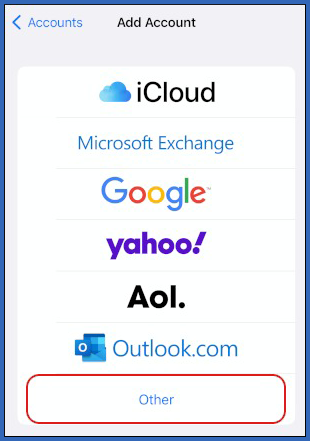
- Tap Other:
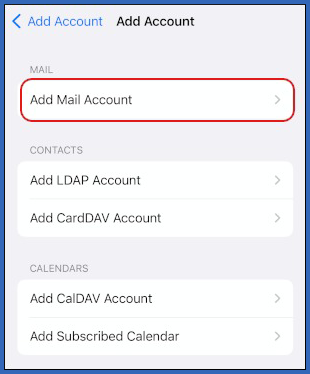
- Under Mail, tap Add Mail Account:
- In the Name text box, type the display name that you want to appear on messages you send:
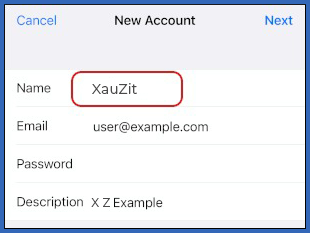
- In the Email text box, type the e-mail address of the account that you created in cPanel (for example, [email protected]).
- In the Password text box, type the password for the e-mail account that you created in cPanel.
- In the Description text box, type a description for the account.
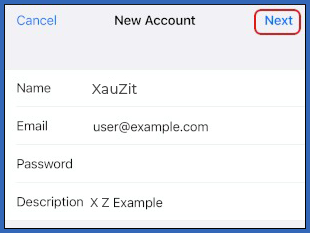
- Tap Next:
- Select the type of incoming mail server that you want to use:
- If you want to use IMAP, tap IMAP.
- If you want to use POP, tap POP.
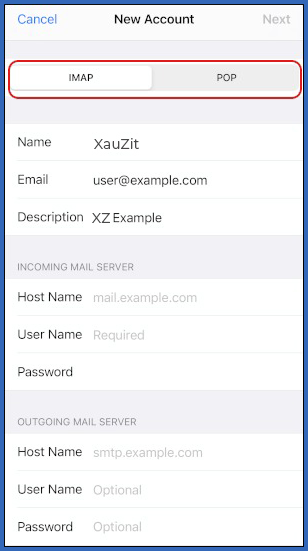
- Under Incoming Mail Server, in the Host Name text box, type either the full XauZit Cloud server name for your account (for example, server.cloud.xauzit.com), or mail.example.com, where example.com represents your site’s domain name.
- In the User Name text box, type the e-mail address of the account that you created in cPanel (for example, [email protected]).
- In the Password text box, type the password for the e-mail account that you created in cPanel.
- Under Outgoing Mail Server, type the same values that you used for the incoming mail server in steps 12 to 14.
- Tap Next. iOS verifies the mail server settings. This process can take several minutes.
- Confirm that Mail is set to ON, and then tap Save:
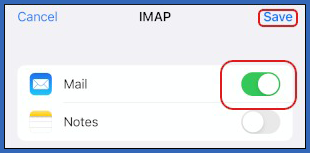
iOS adds the account.
- On the home screen, tap Mail. iOS downloads the messages in the account.
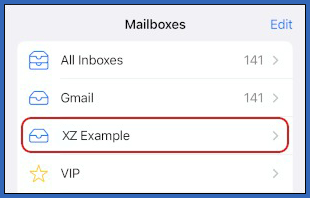
Configuring iOS to delete messages when using IMAP
If you set up iOS to access an e-mail account using IMAP, you may receive the following error message when you try to delete an e-mail message:
Unable to Move Message
The message could not be moved to the mailbox Trash.
Although the e-mail message does not appear in the iOS inbox, it is still on the mail server. (You can verify this yourself by checking the e-mail account in Webmail or another client application.)
To resolve this problem, follow these steps on the iOS device:
- On the home screen, tap Settings, and then tap Mail.
- Tap Accounts, and then tap the account that you want to modify


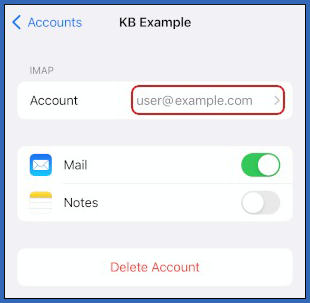
- Under IMAP, tap the account name:
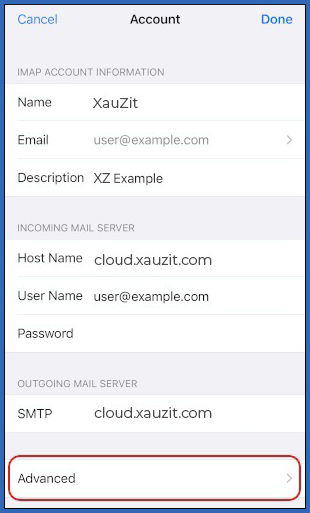
- At the bottom of the page, tap Advanced:
- Under Mailbox Behaviors, tap Deleted Mailbox:

- Under On the Server, confirm there is a check mark next to Trash. If there is not a check box next to Trash, tap Trash:

- On the top menu bar, tap Advanced, tap Account, and then tap Done. Any messages that you delete on iOS are now also deleted on the mail server.