




How Can We Help?
How to set up Aqua Mail on Apple iOS
This article demonstrates how to set up the Aqua Mail email client on Apple iOS to access an XauZit Cloud e-mail account.
To configure Aqua Mail to work with your XauZit Cloud e-mail account, follow these steps:
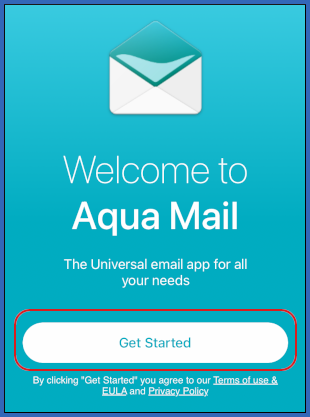
- Start Aqua Mail.
- Tap Get Started:
- Tap Other:

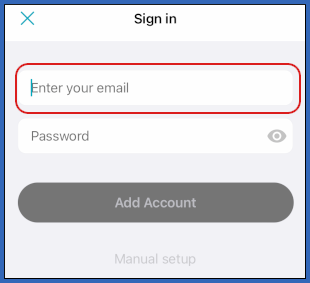
- In the Enter your email text box, type the e-mail address of the account you created in cPanel:
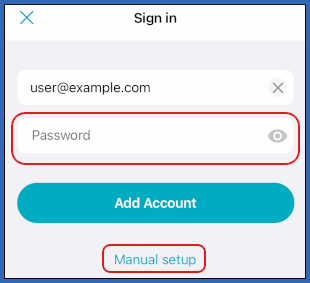
- In the Password text box, type the password for the account you created in cPanel, and then tap Manual setup:
- On the Manual setup page, tap IMAP:
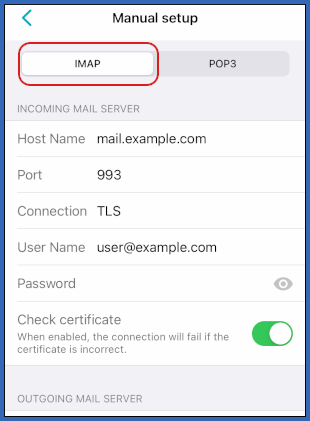
- In the INCOMING MAIL SERVER section, in the Host Name text box, type mail.example.com, where example.com represents your domain name.
- In the Port text box, type 993.
- In the Connection list box, tap TLS.
- In the Password text box, type the password for the account you created in cPanel.
- Confirm the Check certificate option is enabled.
- In the OUTGOING MAIL SERVER section, in the Host Name text box, type mail.example.com, where example.com represents your domain name:
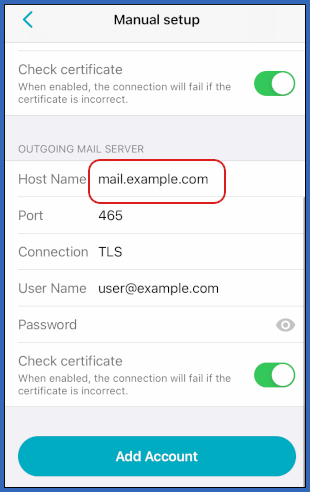
- In the Port text box, type 465.
- In the Connection list box, tap TLS.
- In the Password text box, type the password for the account you created in cPanel.
- Confirm the Check certificate option is enabled.
- Tap Add Account.
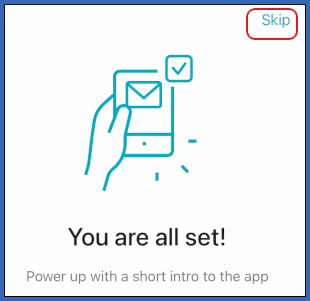
- The You are all set page appears. Scroll through the pages to view the short introduction, or tap Skip:
- Select the plan you want, or tap Close in the top-left corner:

- In the ACCOUNTS list, tap INBOX:
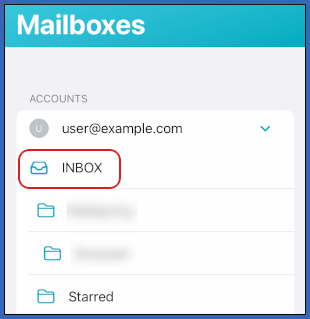
- Aqua Mail downloads any messages in the account, and the inbox appears:

More Information
For more information about Aqua Mail, please visit https://www.aqua-mail.com/.