




How Can We Help?
How to set up the Spike email client on iOS
This article demonstrates how to set up the Spike email client on Apple’s iOS to access an XauZit Cloud e-mail account.
To configure Spike to work with your XauZit Cloud e-mail account, follow these steps:
- Start Spike.
- In the Welcome to Spike dialog box, type the e-mail address of the account you created in cPanel:
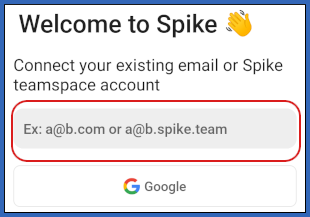
- Tap Continue:

- Tap Not Exchange:
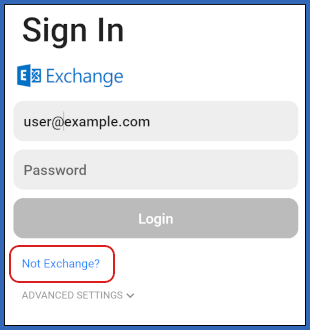
- Tap IMAP:
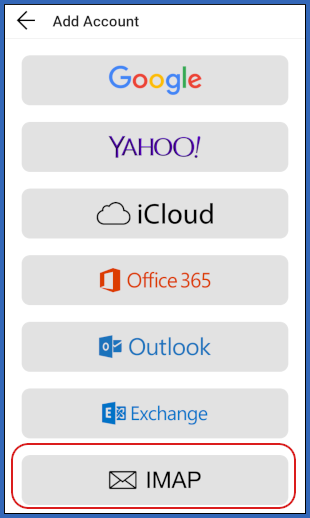
- In the IMAP dialog box, in the Password text box, type the password for the e-mail account you created in cPanel:
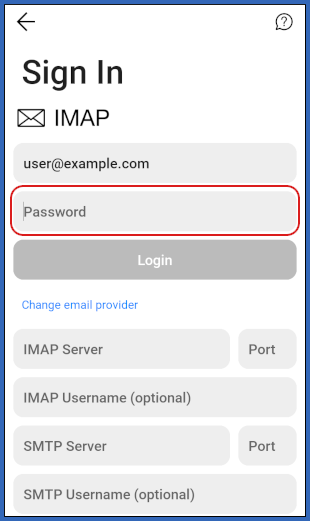
- In the IMAP Server text box, type mail.example.com, where example.com represents your domain name:
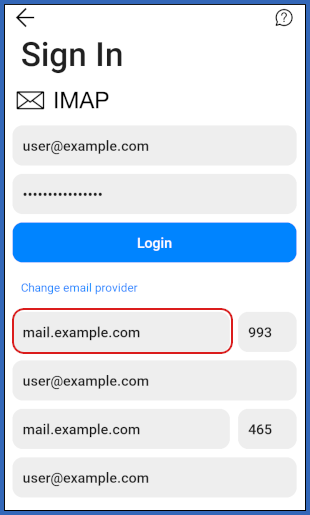
- In the Port text box, type 993.
- In the IMAP Username text box, type the e-mail address of the account you created in cPanel.
- In the SMTP Server text box, type mail.example.com, where example.com represents your domain name.
- In the Port text box, type 465.
- In the SMTP Username text box, type the e-mail address of the account you created in cPanel.
- Tap Login:
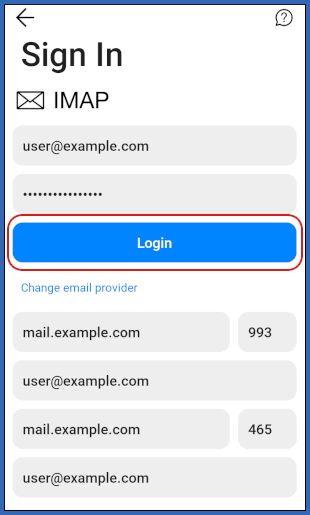
- Spike downloads any messages in the account, and the inbox appears:

More Information
For more information about Spike, please visit https://www.spikenow.com/.