




How Can We Help?
How to set up Spark Mail on Windows
To configure Spark Mail to work with your XauZit Cloud e-mail account, follow these steps:
To configure Spark Mail to work with your XauZit Cloud e-mail account, follow these steps:
- Start Spark Mail.
- In the text box, type the e-mail address of the account you created in cPanel, and then click the arrow:

- Under IMAP/SMTP Server, in the Name text box, type the name you want to appear on messages you send from the account:
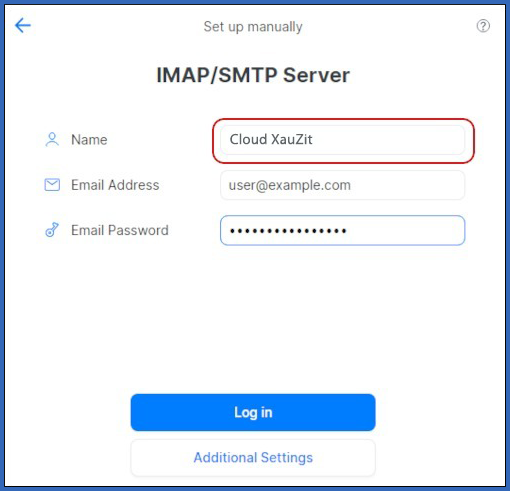
- In the Email Address text box, type the e-mail address of the account you created in cPanel.
- In the Email Password text box, type the password for the e-mail account you created in cPanel.
- Click Additional Settings:

- Under Inbox Server (IMAP), in the Username text box, type the e-mail address of the account you created in cPanel:

- In the Email Password text box, type the password for the e-mail account you created in cPanel.
- In the Server text box, type mail.example.com, where example.com represents your domain name.
- In the Port text box, type 993.
- In the Protection list box, select SSL.
- Scroll down to the Outbox Server (SMTP) section, and in the Username text box, type the e-mail address of the account you created in cPanel:

- In the Email Password text box, type the password for the e-mail account you created in cPanel.
- In the Server text box, type mail.example.com, where example.com represents your domain name.
- In the Port text box, type 465.
- In the Protection list box, select SSL.
- Click Log in. Spark Mail verifies the account configuration settings:

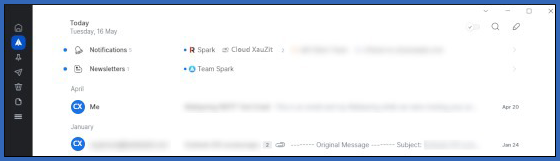
- Click Next, and then click Start using Spark. Spark Mail downloads any messages in the account, and the inbox appears:
More Information
For more information about Spark Mail, please visit https://sparkmailapp.com/.