




How Can We Help?
How to set up Mozilla Thunderbird
This article demonstrates how to set up Mozilla Thunderbird to access an XauZit Cloud e-mail account. If you have not already installed Mozilla Thunderbird, you can download it by visiting http://www.mozilla.org/thunderbird.
To configure Mozilla Thunderbird to work with your XauZit Cloud e-mail account, follow these steps:
- Make sure you have already created at least one e-mail account for your domain. If you have not done this, please see this article to learn how to create an e-mail account using cPanel.
- Start Thunderbird.
- On the menu, click . The Account Settings page appears:

- Click Account Actions, and then click Add Mail Account:

The Account Setup page appears:

- In the Your full name text box, type the name that you want to appear on messages you send.
- In the Email address text box, type the e-mail address of the account that you created in cPanel.
- In the Password text box, type the password for the e-mail account that you created in cPanel.
- If you do not want to retype the account password every time you start Thunderbird, select the Remember password check box.
- Click Continue. Thunderbird automatically detects the mail server settings for the account. If Thunderbird is unable to detect the settings, make sure that you typed the correct e-mail address in step 6.
Click Done:
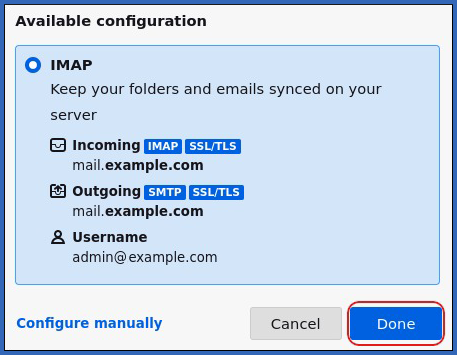
Thunderbird verifies the password that you provided in step 7.
- Click Finish.
- To retrieve messages from the account immediately, click Get Messages. Thunderbird downloads the messages for the account.
More Information
For more information about Mozilla Thunderbird, please visit http://www.mozilla.org/thunderbird.