How Can We Help?
How to set up Gmail on Apple iOS
This article demonstrates how to set up Google Gmail on Apple iOS to access an XauZit Cloud e-mail account.
To configure Gmail to work on iOS with your XauZit Cloud e-mail account, follow these steps:
- Make sure you have already created at least one e-mail account for your domain. If you have not done this, please see this article to learn how to create an e-mail account using cPanel.
- Start Gmail, and then tap Add another account:

- Under Add account, tap Other (IMAP):

- In the Email address text box, type the e-mail address of the account you created in cPanel, and then tap Next:

- Under Incoming server settings, in the Password text box, type the password for the e-mail account you created in cPanel:
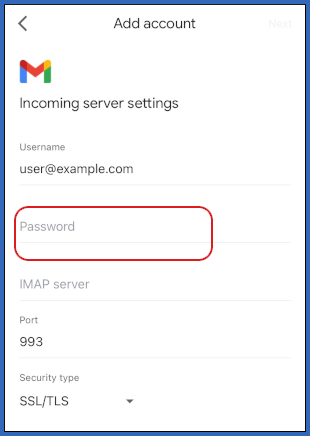
- In the IMAP server text box, type mail.example.com, where example.com represents your domain name.
- Confirm that the Port text box is set to 993, and the Security type list box is set to SSL/TLS, and then tap Next.
- Under Outgoing server settings, in the Password text box, type the password for the e-mail account you created in cPanel:

- In the SMTP server text box, type mail.example.com, where emexample.com represents your domain name.
- Confirm that the Port text box is set to 465, and the Security type list box is set to SSL/TLS, and then tap Next.
- In the Your name text box, type the name you want to appear on messages you send from the account, and then tap Next:

- On the account list page, tap Done:

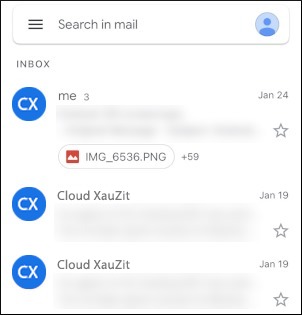
- Gmail downloads any messages in the account, and the inbox appears: