




How Can We Help?
How to set up Apple (Mac) Mail on macOS
This article demonstrates how to set up Apple (Mac) Mail on macOS (formerly OS X) to access an XauZit Cloud e-mail account.
To configure Apple (Mac) Mail to work with your XauZit Cloud e-mail account, follow these steps:
- Make sure you have already created at least one e-mail account for your domain. If you have not done this, please see this article to learn how to create an e-mail account using cPanel.
- Start Mail.
- On the menu, click :
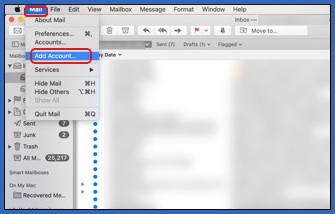
- Under Choose a Mail account provider, click Other Mail Account:

- Click Continue. The Add a Mail account dialog box appears:

- In the Name text box, type the name that you want to appear on messages you send.
- In the Email Address text box, type the e-mail address of the account you created in cPanel.
- In the Password text box, type the password for the e-mail account you created in cPanel.
- Click Sign In:

Mail tries to log in automatically, and may display the error message ”Unable to verify account name or password.” This is normal.
- In the Account Type list box, select the type of incoming mail server that you want to use:
- If you want to use POP, select POP.
- If you want to use IMAP, select IMAP.

In the Incoming Mail Server text box, type the complete XauZit Cloud server name for your account, such as server.cloud.xauzit.com or server.supercp.com. For information about how to determine your account’s server name, please see this article.
In the Outgoing Mail Server text box, type the complete XauZit Cloud server name for your account, such as server.cloud.xauzit.com or server.supercp.com. For information about how to determine your account’s server name, please see this article.
- Click Sign In. Mail tries to log in to the server a second time:
- If the login is successful, and you selected POP as the account type, configuration is complete.
- If the login is successful, and you selected IMAP as the account type, follow these additional steps:
- Mail asks which apps you want to use with the account. Confirm that Mail is checked. Optionally, you can also select the Notes app if you want:

- Click Done. Mail adds the account and downloads any messages.
- On the Mail menu, click Accounts:

- In the list of accounts, click the account you just added, and then click Advanced:
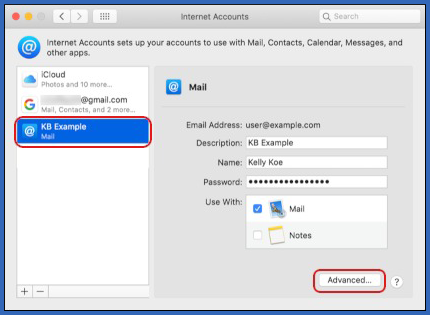
- Confirm that the Path Prefix text box is set to INBOX, and then click OK:

Mail is now configured to work with your XauZit Cloud e-mail account.
More Information
- For information about how to troubleshoot issues with Mail on macOS, please visit https://support.apple.com/en-us/HT204075.
- You can also get more Mail troubleshooting tips in this article.